Setting Up Cloudflare One Client with Cloudflare Zero Trust
A technical writeup covering the setup and enrollment of Cloudflare One Client on Windows and Cloudflare One Agent on Android with Cloudflare Zero Trust, including device configuration, authentication, and verification.
Introduction
This writeup documents the basic setup of Cloudflare One Client on Windows and Cloudflare One Agent on Android, including enrollment into a Cloudflare Zero Trust organization.
The setup process includes:
- Confirming the Cloudflare Zero Trust organization
- Configuring device enrollment
- Installing the Windows application
- Enrolling the Windows device
- Installing the Android application
- Enrolling the Android device
- Verifying both devices in the Cloudflare dashboard
1. Confirm the Cloudflare Zero Trust Organization
Sign in to the Cloudflare dashboard and open the Zero Trust section.
Confirm that the organization has been created and that the organization or team name is available. This name is required when enrolling both the Windows and Android devices.
Record the team name for use during the enrollment process.
The Cloudflare Zero Trust dashboard with sensitive organization information hidden or partially redacted.
2. Configure Device Enrollment
Before installing the applications, configure the device enrollment settings.
Open the device enrollment section in the Cloudflare Zero Trust dashboard. Depending on the dashboard layout, this may be located under:
Team & Resources → Devices
Configure the users or groups that are allowed to enroll devices.
Review the available authentication options, such as:
- One-time PIN
- Microsoft
- Okta
- Another supported identity provider
The enrollment policy must allow the account being used for the Windows and Android setup.
3. Install Cloudflare One Client on Windows
Download the official Cloudflare One Client for Windows(opens in new tab) from Cloudflare.
Install the application using the standard Windows installation process.
After installation, open the Cloudflare One Client from the Start menu or Windows notification area.
4. Enroll the Windows Device
Open the Cloudflare One Client on Windows.
Select Zero Trust security when prompted.
Enter the Cloudflare Zero Trust organization or team name.
A browser window may open for authentication. Complete the login using the authentication method configured in the Zero Trust dashboard.
After authentication is complete, return to the Cloudflare One Client.
The Windows Cloudflare One Client enrollment screen or authentication page.
5. Verify the Windows Connection
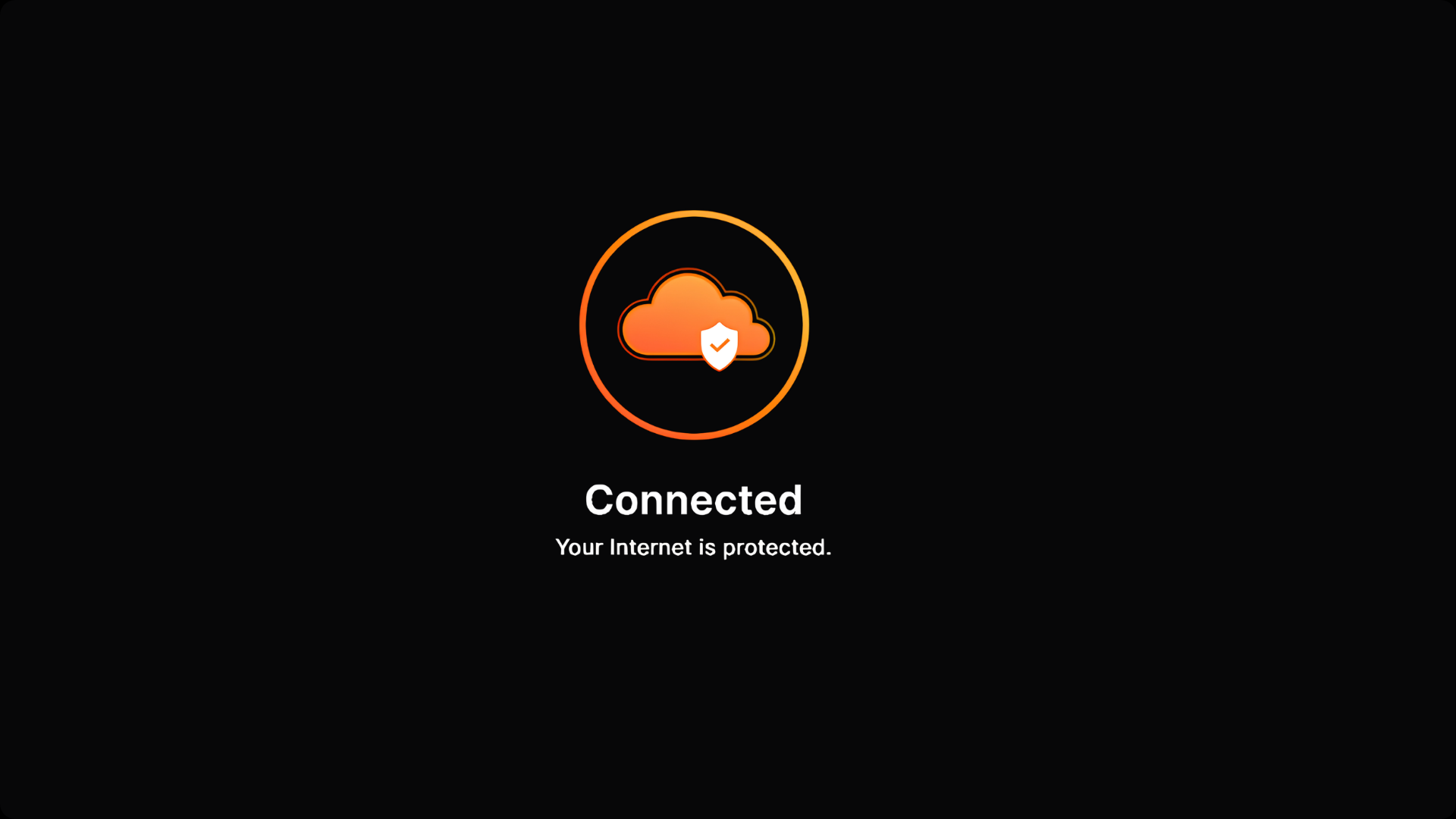
After enrollment, confirm that the Cloudflare One Client shows an active connection.
Check for:
- Connected status
- Zero Trust security mode
- Correct organization or team association
- Active Cloudflare connection
A connected status alone does not confirm enrollment. Verify that the client is connected to the organization's Zero Trust environment rather than consumer WARP mode.
6. Install Cloudflare One Agent on Android
Open the Google Play Store on the Android device.
Search for:
Cloudflare One agent
Install the official application published by Cloudflare.
The Android application is called Cloudflare One Agent and is separate from the Windows Cloudflare One Client.
7. Enroll the Android Device
Open Cloudflare One Agent on Android.
Select the option to connect to an organization or use Zero Trust security.
Enter the Cloudflare Zero Trust organization or team name.
The application may open a browser for authentication. Complete the login using the configured authentication method.
After authentication, return to Cloudflare One Agent.
8. Grant Android VPN Permission
Android will display a permission prompt allowing Cloudflare One Agent to create a VPN connection.
Review the prompt and approve the VPN connection.
This permission is required for Cloudflare One Agent to establish the device connection.
9. Verify the Android Connection
After enrollment and permission approval, confirm that Cloudflare One Agent shows an active connection.
Check for:
- Connected status
- Active VPN indicator
- Successful authentication
- Working Internet connectivity
The Android VPN indicator confirms that the local VPN connection is active. The Cloudflare dashboard should also be checked to confirm that the device is enrolled in the Zero Trust organization.
10. Verify Both Devices in Cloudflare Zero Trust
Return to the Cloudflare Zero Trust dashboard and open the device management section.
Confirm that both devices appear in the enrolled device list:
- Windows device
- Android device
Review the device names, operating systems, connection status, and last-seen information.
11. Test Basic Connectivity
Test Internet connectivity from both devices while the applications are connected.
For Windows, verify that:
- Websites load successfully.
- DNS resolution works.
- The Cloudflare One Client remains connected.
For Android, verify that:
- Websites and applications load successfully.
- DNS resolution works.
- Cloudflare One Agent remains connected.
Record the results without including personal information, internal hostnames, or private IP addresses.
12. Review the Final Setup
Confirm that:
- Cloudflare One Client is installed on Windows.
- Cloudflare One Agent is installed on Android.
- Both devices are enrolled in the same Zero Trust organization.
- Both applications show an active connection.
- Both devices appear in the Cloudflare Zero Trust dashboard.
- Android VPN permission has been granted.
- Basic Internet connectivity works on both devices.
Troubleshooting
The Windows Client Shows Consumer WARP
Confirm that the Cloudflare One Client was configured for Zero Trust security and that the correct organization or team name was entered.
The Android Application Shows Consumer WARP
Confirm that Cloudflare One Agent was configured to connect to the Zero Trust organization and that authentication completed successfully.
The Organization Name Is Rejected
Verify the spelling of the organization or team name and confirm that the account is allowed to enroll devices.
Authentication Fails
Check the configured authentication method and confirm that the account is included in the device enrollment policy.
A Device Does Not Appear in the Dashboard
Refresh the device list and confirm that enrollment completed successfully.
Verify that the device was enrolled into the correct organization.
Windows Does Not Connect
Check the Windows network connection, Cloudflare One Client status, firewall settings, and whether another VPN application is active.
Android Does Not Connect
Confirm that Android VPN permission was granted and that another VPN application is not active.
Also verify that Cloudflare One Agent is allowed to run in the background.
Security Considerations
Before publishing screenshots, hide or remove:
- Email addresses
- Organization identifiers
- Team names
- Device identifiers
- QR codes
- Authentication information
- Private IP addresses
- Internal hostnames
- Personal notifications
- Account names
Screenshots should demonstrate the setup without exposing sensitive information.
Final Result
The completed setup consisted of:
Windows PC                         Android Device
     │                                  │
     ▼                                  ▼
Cloudflare One Client          Cloudflare One Agent
     │                                  │
     └──────────────┬───────────────────┘
                    ▼
          Cloudflare Zero Trust
                    │
                    ▼
                 Internet
Both devices were enrolled into the Cloudflare Zero Trust organization and connected using their respective Cloudflare applications.
Conclusion
This setup demonstrated how to install and enroll Cloudflare One Client on Windows and Cloudflare One Agent on Android into the same Cloudflare Zero Trust organization.
The process focused on the essential setup steps: configuring device enrollment, installing each application, authenticating the devices, granting Android VPN permission, and verifying both devices in the Cloudflare dashboard.