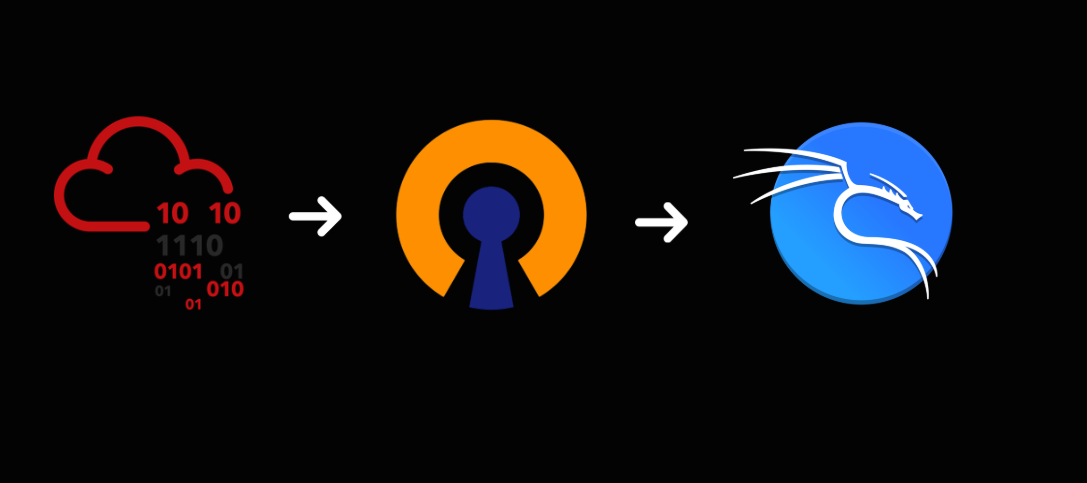
Setting Up TryHackMe OpenVPN on Kali Linux
Configured Kali Linux to connect to the TryHackMe VPN using OpenVPN. This setup enables secure access to TryHackMe lab environments for practicing penetration testing, network enumeration, and cybersecurity exercises.
Introduction
To start my cybersecurity practice with TryHackMe, I configured my Kali Linux environment to connect to the TryHackMe VPN.
The VPN connection allows my Kali Linux machine to securely access TryHackMe lab environments and communicate with target machines during security exercises.
Preparing Kali Linux
Before setting up the VPN, I updated my Kali Linux system and verified that OpenVPN was installed.
Tasks performed:
- Updated Kali Linux packages.
- Checked OpenVPN availability.
- Confirmed internet connectivity.
Understanding TryHackMe VPN Connection
TryHackMe uses a VPN connection to provide secure access to its private lab networks.
The VPN creates an encrypted tunnel between my Kali Linux machine and TryHackMe's infrastructure.
This allows:
- Access to vulnerable machines inside TryHackMe labs.
- Secure communication with training environments.
- Safe practice without interacting with real production systems.
The VPN connection works as a bridge between my local security workstation and the TryHackMe practice environment.
Accessing TryHackMe VPN Settings
TryHackMe provides VPN setup guides for different operating systems:
- Linux
- Windows
- macOS
To access the VPN settings:
- Log in to your TryHackMe account.
- Navigate to Profile → Manage Account → VM and VPN Settings.
- Scroll down to view VPN status, download VPN configurations, or create additional VPN profiles.
After accessing the VPN settings, I downloaded the OpenVPN configuration file required for connecting Kali Linux to the TryHackMe network.
TryHackMe also provides a dedicated room for learning how to configure and use OpenVPN: https://tryhackme.com/room/openvpn(opens in new tab)
Connecting to TryHackMe VPN
I used OpenVPN to start the connection using the downloaded configuration file.
Command:
sudo openvpn filename.ovpnAfter starting OpenVPN, the connection process authenticated with TryHackMe and created a VPN tunnel.
Verifying VPN Connection
After importing the VPN configuration file into Kali Linux, the next step is to verify that the connection is working correctly by accessing the TryHackMe network.
Navigate to:
Profile → Manage Account → VM and VPN Settings
Scroll down to the VPN configuration section. This page displays your VPN connection status, current configuration details, and additional options for managing your VPN profiles. TryHackMe also provides the ability to create multiple VPN configurations, which can be useful if you need separate configurations for different devices or environments.
The VPN interface confirmed that my Kali Linux machine was connected to the TryHackMe network.
Using Kali Linux for TryHackMe Labs
With the VPN configured, Kali Linux is now ready for cybersecurity practice.
The environment will be used for:
- Network scanning.
- Enumeration.
- Vulnerability assessment.
- Web security testing.
- Linux security exercises.
Auto
Conclusion
Setting up the TryHackMe VPN on Kali Linux created a secure environment for practicing cybersecurity skills.
This setup allows me to safely perform security exercises and continue developing my knowledge in penetration testing and security operations.